Collection
Smart Home
2026.10.06
Choosing Devices When Starting Matter·Thread Smart Home
Real products that distinguish roles as controller, border router, and bridge beyond just the logo
‘Choosing Devices When Starting Matter·Thread Smart Home’ is a list focused on reducing compatibility failures by distinguishing between Matter certification, Thread communication, and the roles of existing brand hubs. Even if smart home products use the same functional names, the communication methods, hubs, and installation conditions can vary, making it easy to disrupt automation if decisions are based on a single device. This article distinguishes the duties of each product and explores the frequently used functions and necessary preparations in daily life.
A practical approach would be to choose a platform — such as Apple Home, Google Home, or SmartThings — and then check for controllers and Thread Border Routers before starting with the registration of one device. Before purchasing, key aspects to compare for each product include: Matter support version, necessity of a Thread Border Router, differences in exposure through bridges and device certification, and features related to region and firmware. Defining the actions when the internet is down, how family members will directly operate the device, and who to consult when issues arise can help minimize disruptions in life due to automation.
A practical approach would be to choose a platform — such as Apple Home, Google Home, or SmartThings — and then check for controllers and Thread Border Routers before starting with the registration of one device. Before purchasing, key aspects to compare for each product include: Matter support version, necessity of a Thread Border Router, differences in exposure through bridges and device certification, and features related to region and firmware. Defining the actions when the internet is down, how family members will directly operate the device, and who to consult when issues arise can help minimize disruptions in life due to automation.
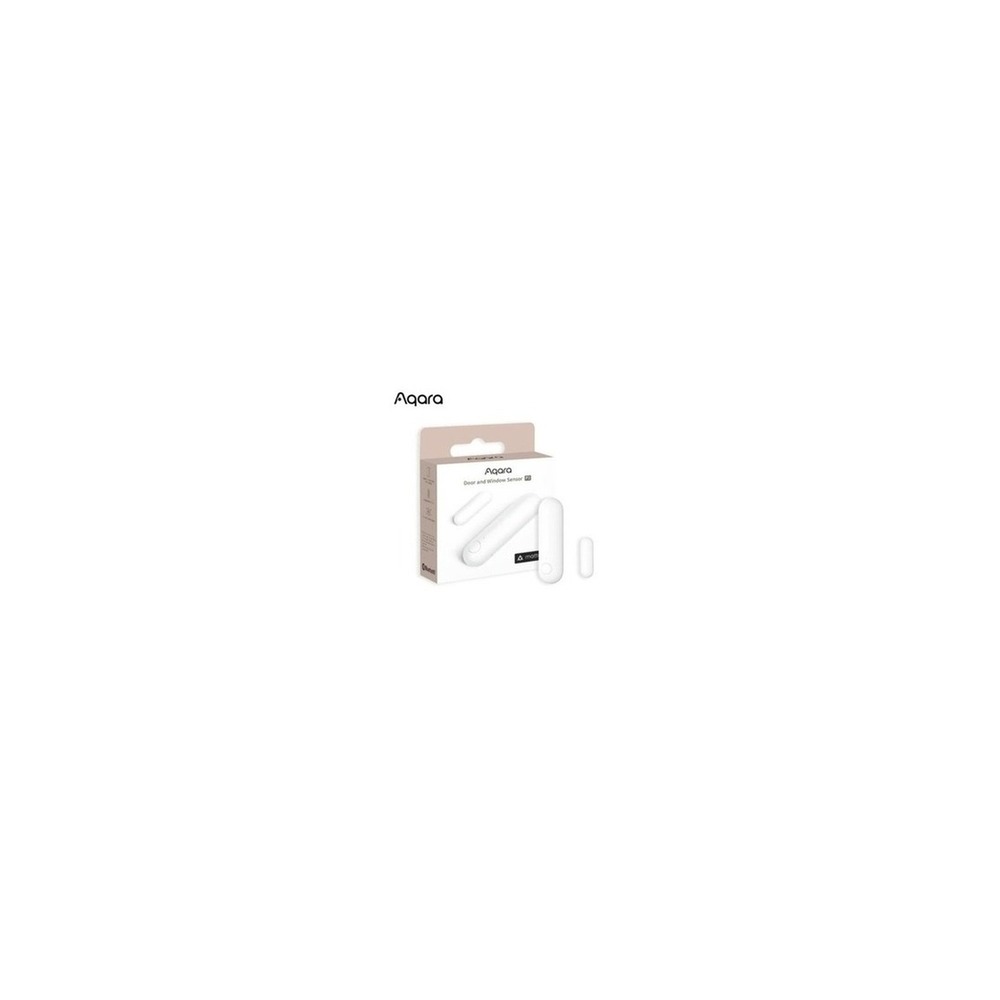
Aqara Door Window Sensor P2
The reason for including the Aqara Door Window Sensor P2 in ‘Choosing Devices When Starting Matter·Thread Smart Home’ is that it shares the open/closed status of doors and windows via Matter over Thread, which directly connects to the purpose of the list. Especially from the perspective of ‘Choosing Devices When Starting Matter·Thread Smart Home’, it’s easy to feel the advantages of the Aqara Door Window Sensor P2, equipped with a Thread Border Router in a multi-platform home. However, the Aqara Door Window Sensor P2 is not just a product that can be connected without additional steps. The compatibility conditions for the Aqara Door Window Sensor P2 confirmed in ‘Choosing Devices When Starting Matter·Thread Smart Home’ include verifying ‘Matter over Thread support and necessity of a Thread Border Router’, while power conditions are guided as ‘replaceable battery’, so it should be matched with the actual home environment.
The installation conditions for the Aqara Door Window Sensor P2 to consider as per ‘Choosing Devices When Starting Matter·Thread Smart Home’ are ‘checking the distance between the sensor and magnet, the surface for attachment, and the door’s movement’. Based on these conditions, determine the initial position and movement path. When evaluating the costs of the ‘Choosing Devices When Starting Matter·Thread Smart Home’ setup, confirm that ‘basic sensor usage does not require a subscription’, and manage the Aqara Door Window Sensor P2’s account and records with the principle of ‘limited members to share open records and external notifications’. After installing the Aqara Door Window Sensor P2, refer to ‘Choosing Devices When Starting Matter·Thread Smart Home’ for a few days to test both the automation results and manual operations. Just before purchase, it’s safer to recheck the model name, components, ratings, and sales status of the Aqara Door Window Sensor P2 connected to the original source document.
The installation conditions for the Aqara Door Window Sensor P2 to consider as per ‘Choosing Devices When Starting Matter·Thread Smart Home’ are ‘checking the distance between the sensor and magnet, the surface for attachment, and the door’s movement’. Based on these conditions, determine the initial position and movement path. When evaluating the costs of the ‘Choosing Devices When Starting Matter·Thread Smart Home’ setup, confirm that ‘basic sensor usage does not require a subscription’, and manage the Aqara Door Window Sensor P2’s account and records with the principle of ‘limited members to share open records and external notifications’. After installing the Aqara Door Window Sensor P2, refer to ‘Choosing Devices When Starting Matter·Thread Smart Home’ for a few days to test both the automation results and manual operations. Just before purchase, it’s safer to recheck the model name, components, ratings, and sales status of the Aqara Door Window Sensor P2 connected to the original source document.
브랜드 Aqara
주요 용도 Matter over Thread로 문·창문 열림 상태를 공유
알맞은 상황 Thread Border Router가 준비된 멀티플랫폼 집
호환 조건 Matter over Thread 지원과 Thread Border Router 필요 여부 확인
전원 교체형 배터리
설치 확인 센서와 자석 간격·부착면·문 움직임 확인
구독 기본 센서 사용은 구독 없음
개인정보·보안 열림 기록과 외부 알림을 공유할 구성원 제한
이미지 출처 기존 검증 쿠팡 상품 이미지
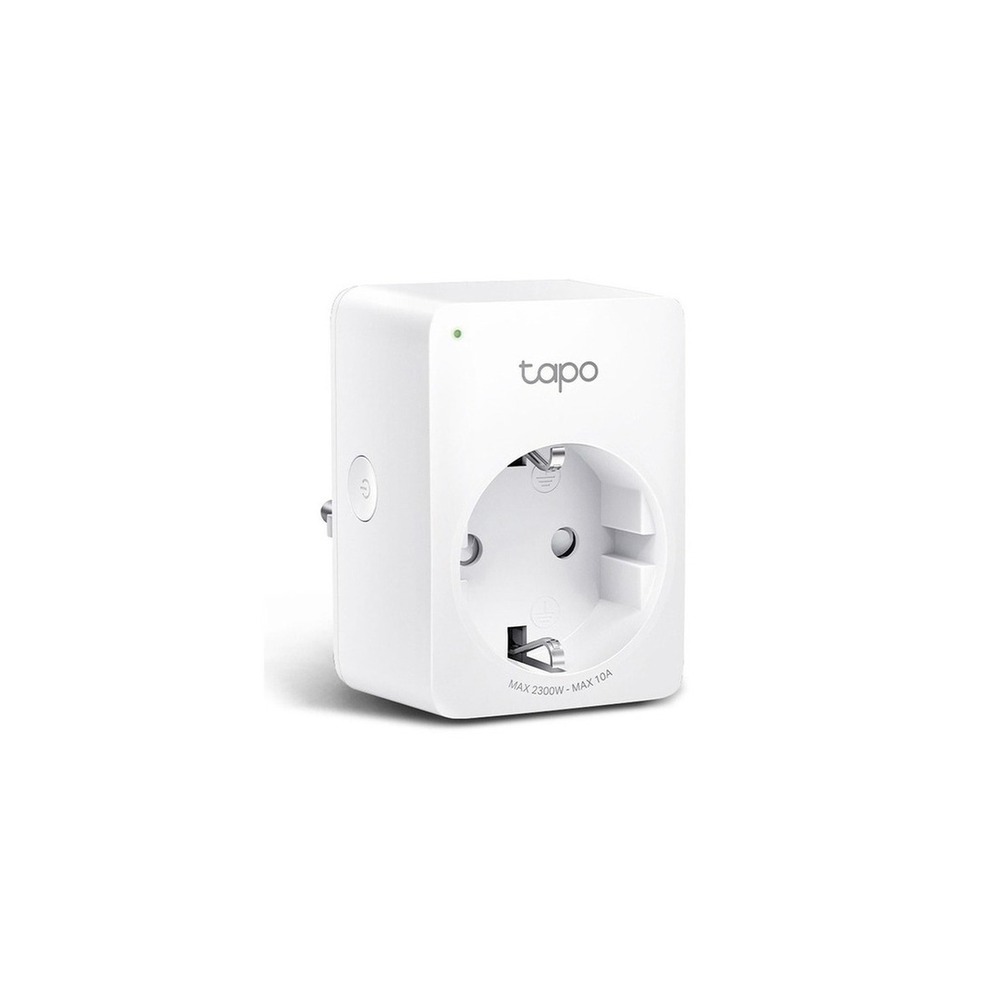
TP-Link Tapo P100 Smart Plug
Tapo 10A IoT Smart Monitoring Mini Wi-Fi Power Plug, Tapo P100M, 1 Unit
The reason for including the TP-Link Tapo P100 smart plug in ‘Choosing Devices When Starting Matter·Thread Smart Home’ is that it is a Matter-certified plug that allows power control across various supported platforms, directly connecting to the purpose of the list. Especially from the perspective of ‘Choosing Devices When Starting Matter·Thread Smart Home’, it's easy to appreciate the advantages of the TP-Link Tapo P100 smart plug when practicing Matter registration with just one device. However, the TP-Link Tapo P100 smart plug is not just a product that can be connected without additional steps. The compatibility conditions for the TP-Link Tapo P100 smart plug confirmed in ‘Choosing Devices When Starting Matter·Thread Smart Home’ include ‘Tapo app, 2.4GHz Wi-Fi, and supported voice assistants’, while power conditions are guided as ‘household outlet with load under product rating’, so it should be matched with the actual home environment.
The installation conditions for the TP-Link Tapo P100 smart plug to consider as per ‘Choosing Devices When Starting Matter·Thread Smart Home’ are ‘plugging it into a wall outlet and checking for nearby outlet interference’. Based on these conditions, determine the initial position and movement path. When evaluating the costs of the ‘Choosing Devices When Starting Matter·Thread Smart Home’ setup, confirm that ‘basic control does not require a subscription’, and manage the TP-Link Tapo P100 smart plug’s account and records with the principle of ‘managing shared accounts and external remote access permissions’. After installing the TP-Link Tapo P100 smart plug, refer to ‘Choosing Devices When Starting Matter·Thread Smart Home’ for a few days to test both the automation results and manual operations. Just before purchase, it’s safer to recheck the model name, components, ratings, and sales status of the TP-Link Tapo P100 smart plug connected to the original source document.
The installation conditions for the TP-Link Tapo P100 smart plug to consider as per ‘Choosing Devices When Starting Matter·Thread Smart Home’ are ‘plugging it into a wall outlet and checking for nearby outlet interference’. Based on these conditions, determine the initial position and movement path. When evaluating the costs of the ‘Choosing Devices When Starting Matter·Thread Smart Home’ setup, confirm that ‘basic control does not require a subscription’, and manage the TP-Link Tapo P100 smart plug’s account and records with the principle of ‘managing shared accounts and external remote access permissions’. After installing the TP-Link Tapo P100 smart plug, refer to ‘Choosing Devices When Starting Matter·Thread Smart Home’ for a few days to test both the automation results and manual operations. Just before purchase, it’s safer to recheck the model name, components, ratings, and sales status of the TP-Link Tapo P100 smart plug connected to the original source document.
브랜드 TP-Link Tapo
주요 용도 Matter 인증 플러그로 여러 지원 플랫폼에서 전원을 제어
알맞은 상황 스마트 플러그 한 개로 Matter 등록을 연습할 때
호환 조건 Tapo 앱·2.4GHz Wi-Fi·지원 음성비서 확인
전원 가정용 콘센트, 제품 정격 내 부하
설치 확인 벽 콘센트에 꽂고 주변 콘센트 간섭 확인
구독 기본 제어는 구독 없음
개인정보·보안 공유 계정과 외부 원격접속 권한 관리
이미지 출처 기존 검증 쿠팡 상품 이미지
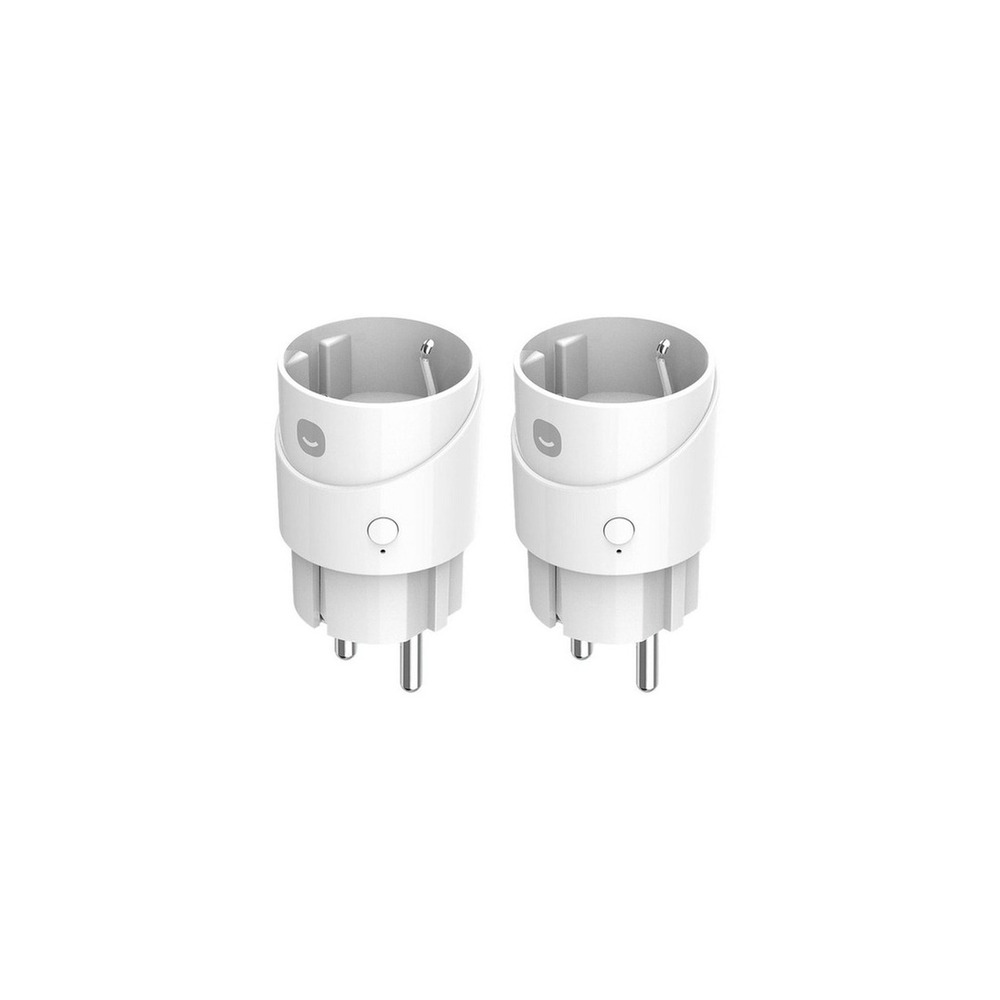
HeyHome Smart Plug
Hejhome Matter Remote Controlled Outlet Air Smart Plug 1 Gang GKMW-PG191
The reason for including the Hejhome smart plug in ‘Choosing Devices When Starting Matter·Thread Smart Home’ is that it is a Matter product with domestic plug specifications, which allows for remote and scheduled control, directly connecting to the purpose of the list. Especially from the perspective of ‘Choosing Devices When Starting Matter·Thread Smart Home’, it’s easy to feel the advantages of the Hejhome smart plug when testing it alongside Hejhome and other platforms. However, the Hejhome smart plug is not just a product that can be connected without additional steps. The compatibility conditions for the Hejhome smart plug confirmed in ‘Choosing Devices When Starting Matter·Thread Smart Home’ include verifying ‘Hejhome app, 2.4GHz Wi-Fi, and support for voice platforms’, while power conditions are guided as ‘household outlet and product rating’, so it should be matched with the actual home environment.
The installation conditions for the Hejhome smart plug to consider as per ‘Choosing Devices When Starting Matter·Thread Smart Home’ are ‘checking the distance from wall outlets and multi-tap’. Based on these conditions, determine the initial position and movement path. When evaluating the costs of the ‘Choosing Devices When Starting Matter·Thread Smart Home’ setup, confirm that ‘basic control does not require a subscription’, and manage the Hejhome smart plug’s account and records with the principle of ‘inviting family accounts and confirming remote control permissions’. After installing the Hejhome smart plug, refer to ‘Choosing Devices When Starting Matter·Thread Smart Home’ for a few days to test both the automation results and manual operations. Just before purchase, it’s safer to recheck the model name, components, ratings, and sales status of the Hejhome smart plug connected to the original source document.
The installation conditions for the Hejhome smart plug to consider as per ‘Choosing Devices When Starting Matter·Thread Smart Home’ are ‘checking the distance from wall outlets and multi-tap’. Based on these conditions, determine the initial position and movement path. When evaluating the costs of the ‘Choosing Devices When Starting Matter·Thread Smart Home’ setup, confirm that ‘basic control does not require a subscription’, and manage the Hejhome smart plug’s account and records with the principle of ‘inviting family accounts and confirming remote control permissions’. After installing the Hejhome smart plug, refer to ‘Choosing Devices When Starting Matter·Thread Smart Home’ for a few days to test both the automation results and manual operations. Just before purchase, it’s safer to recheck the model name, components, ratings, and sales status of the Hejhome smart plug connected to the original source document.
브랜드 Hejhome
주요 용도 국내 플러그 규격의 Matter 제품으로 원격·예약 제어
알맞은 상황 Hejhome과 타 플랫폼을 함께 시험할 때
호환 조건 Hejhome 앱·2.4GHz Wi-Fi와 음성 플랫폼 지원 확인
전원 가정용 콘센트와 제품 정격
설치 확인 벽면 콘센트와 멀티탭 간격 확인
구독 기본 제어는 구독 없음
개인정보·보안 가족 초대 계정과 원격제어 권한 확인
이미지 출처 기존 검증 쿠팡 상품 이미지
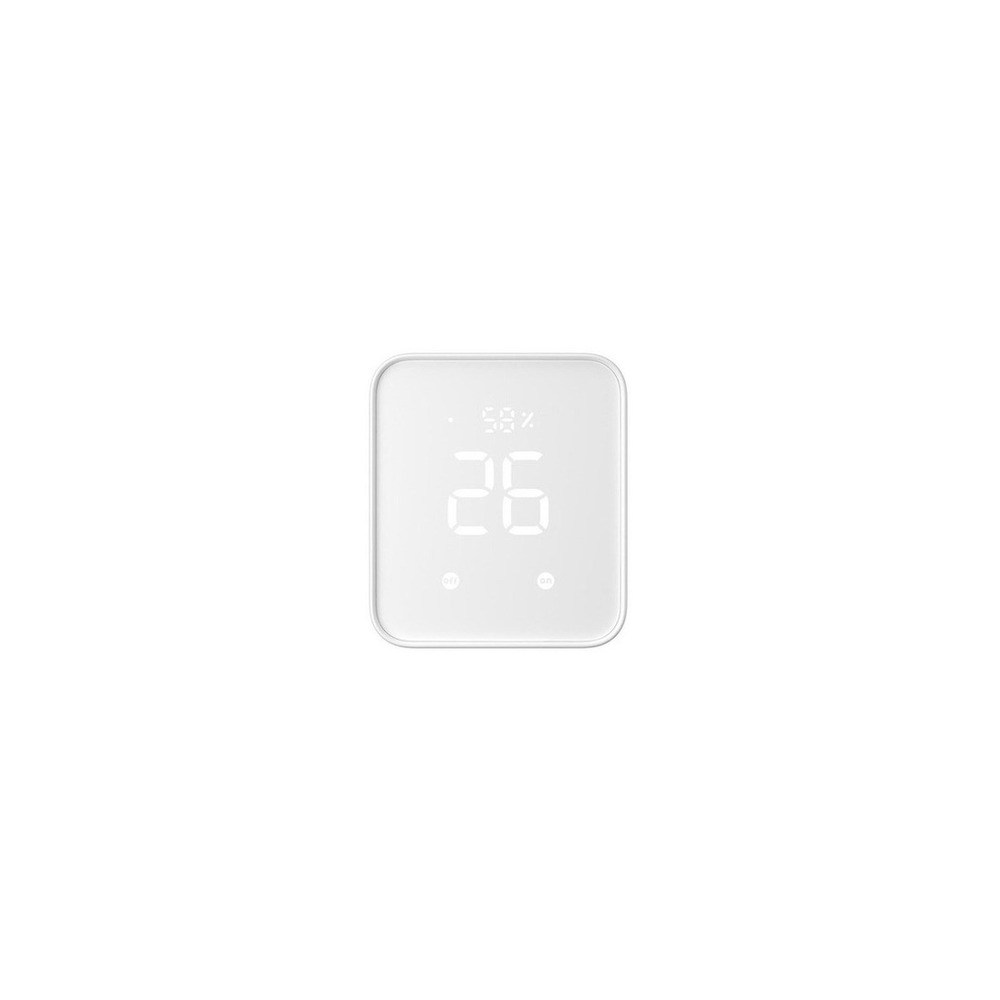
SwitchBot Hub 2 Matter Support
SwitchBot Hub 2 Matter Supported Universal Remote Control Smart Home
The reason for including the SwitchBot Hub 2 Matter support in ‘Choosing Devices When Starting Matter·Thread Smart Home’ is that it serves as a bridge connecting SwitchBot Bluetooth devices to the Matter ecosystem, which directly relates to the purpose of the list. Especially from the perspective of ‘Choosing Devices When Starting Matter·Thread Smart Home’, it’s easy to appreciate the advantages of using the SwitchBot Hub 2 Matter support when wanting to expose Curtain and Bot to other platforms. However, the SwitchBot Hub 2 Matter support is not just a product that can be connected without additional steps. The compatibility conditions for the SwitchBot Hub 2 Matter support confirmed in ‘Choosing Devices When Starting Matter·Thread Smart Home’ include ‘checking for Wi-Fi, Bluetooth, and the list of Matter supported devices’, while power conditions are guided as ‘constant power via USB’, so it should be matched with the actual home environment.
The installation conditions for the SwitchBot Hub 2 Matter support to consider as per ‘Choosing Devices When Starting Matter·Thread Smart Home’ are ‘placing it in the center of the house where Wi-Fi communication can reach other devices’. Based on these conditions, determine the initial position and movement path. When evaluating the costs of the ‘Choosing Devices When Starting Matter·Thread Smart Home’ setup, confirm that ‘basic hub functions do not require a subscription’, and manage the SwitchBot Hub 2 Matter support’s account and records with the principle of ‘managing remote control accounts, infrared remote control data, and family permissions’. After installing the SwitchBot Hub 2 Matter support, refer to ‘Choosing Devices When Starting Matter·Thread Smart Home’ for a few days to test both the automation results and manual operations. Just before purchase, it’s safer to recheck the model name, components, ratings, and sales status of the SwitchBot Hub 2 Matter support connected to the original source document.
The installation conditions for the SwitchBot Hub 2 Matter support to consider as per ‘Choosing Devices When Starting Matter·Thread Smart Home’ are ‘placing it in the center of the house where Wi-Fi communication can reach other devices’. Based on these conditions, determine the initial position and movement path. When evaluating the costs of the ‘Choosing Devices When Starting Matter·Thread Smart Home’ setup, confirm that ‘basic hub functions do not require a subscription’, and manage the SwitchBot Hub 2 Matter support’s account and records with the principle of ‘managing remote control accounts, infrared remote control data, and family permissions’. After installing the SwitchBot Hub 2 Matter support, refer to ‘Choosing Devices When Starting Matter·Thread Smart Home’ for a few days to test both the automation results and manual operations. Just before purchase, it’s safer to recheck the model name, components, ratings, and sales status of the SwitchBot Hub 2 Matter support connected to the original source document.
브랜드 SwitchBot
주요 용도 SwitchBot Bluetooth 기기를 Matter 생태계에 연결하는 브리지 역할
알맞은 상황 Curtain·Bot을 다른 플랫폼에 노출하고 싶은 집
호환 조건 Wi-Fi·Bluetooth·Matter 지원 기기 목록 확인
전원 USB 상시 전원
설치 확인 집 중앙의 Wi-Fi와 각 기기 통신이 닿는 위치에 배치
구독 기본 허브 기능은 구독 없음
개인정보·보안 원격제어 계정·적외선 리모컨 데이터와 가족 권한 관리
이미지 출처 기존 검증 쿠팡 상품 이미지
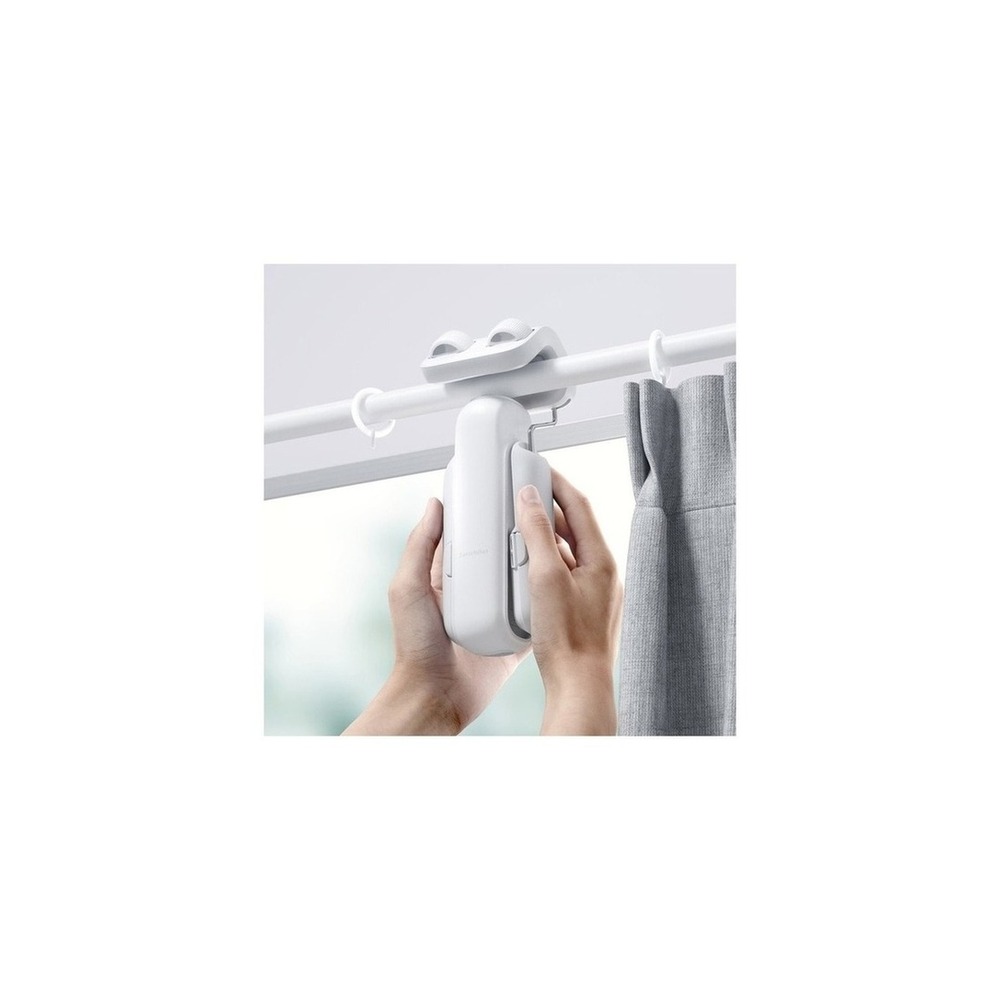
SwitchBot Curtain 3
SwitchBot Electric Curtain Version 3 Rod Type 42 x 51 x 173 mm
The reason for including the SwitchBot Curtain 3 in ‘Choosing Devices When Starting Matter·Thread Smart Home’ is that it allows electric curtains to be included in Matter scenes via Hub 2, which directly connects to the purpose of the list. Especially from the perspective of ‘Choosing Devices When Starting Matter·Thread Smart Home’, it’s easy to appreciate the advantages of the SwitchBot Curtain 3 when automating sunrise and sunset across multiple platforms. However, the SwitchBot Curtain 3 is not just a product that can be connected without additional steps. The compatibility conditions for the SwitchBot Curtain 3 confirmed in ‘Choosing Devices When Starting Matter·Thread Smart Home’ include ‘verifying models by rail type and Hub/Matter integration conditions’, while power conditions are guided as ‘rechargeable battery’, so it should be matched with the actual home environment.
The installation conditions for the SwitchBot Curtain 3 to consider as per ‘Choosing Devices When Starting Matter·Thread Smart Home’ are ‘checking the curtain weight, rail shape, running interference, and risk of falling’. Based on these conditions, determine the initial position and movement path. When evaluating the costs of the ‘Choosing Devices When Starting Matter·Thread Smart Home’ setup, confirm that ‘basic app control does not require a subscription’, and manage the SwitchBot Curtain 3’s account and records with the principle of ‘verifying location/sunrise automation permissions and family account sharing’. After installing the SwitchBot Curtain 3, refer to ‘Choosing Devices When Starting Matter·Thread Smart Home’ for a few days to test both the automation results and manual operations. Just before purchase, it’s safer to recheck the model name, components, ratings, and sales status of the SwitchBot Curtain 3 connected to the original source document.
The installation conditions for the SwitchBot Curtain 3 to consider as per ‘Choosing Devices When Starting Matter·Thread Smart Home’ are ‘checking the curtain weight, rail shape, running interference, and risk of falling’. Based on these conditions, determine the initial position and movement path. When evaluating the costs of the ‘Choosing Devices When Starting Matter·Thread Smart Home’ setup, confirm that ‘basic app control does not require a subscription’, and manage the SwitchBot Curtain 3’s account and records with the principle of ‘verifying location/sunrise automation permissions and family account sharing’. After installing the SwitchBot Curtain 3, refer to ‘Choosing Devices When Starting Matter·Thread Smart Home’ for a few days to test both the automation results and manual operations. Just before purchase, it’s safer to recheck the model name, components, ratings, and sales status of the SwitchBot Curtain 3 connected to the original source document.
브랜드 SwitchBot
주요 용도 Hub 2를 통해 전동 커튼을 Matter 장면에 포함
알맞은 상황 기상·일몰 자동화를 멀티플랫폼에서 쓸 때
호환 조건 레일 유형별 모델과 Hub·Matter 연동 조건 확인
전원 충전식 배터리
설치 확인 커튼 무게·레일 형상·주행 간섭과 낙하 위험 확인
구독 기본 앱 제어는 구독 없음
개인정보·보안 위치·일출 자동화 권한과 가족 계정 공유 확인
이미지 출처 기존 검증 쿠팡 상품 이미지
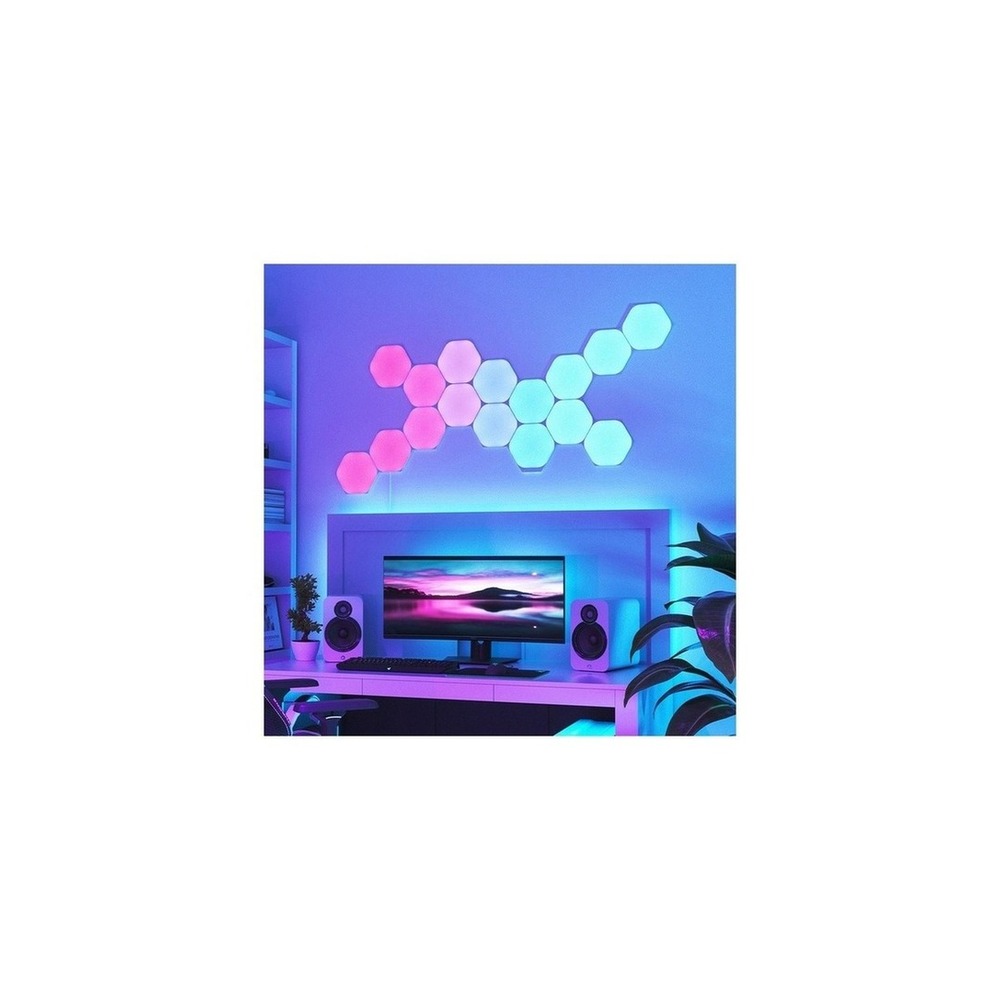
Nanoleaf Shape Hexagon Starter Kit
Nanoleaf Shapes Hexagons 9 Pack Interior LED Smart Lighting, White
The reason for including the Nanoleaf Shapes Hexagon Starter Kit in ‘Choosing Devices When Starting Matter·Thread Smart Home’ is that it combines lighting panels with some Thread ecosystem features, which directly relates to the purpose of the list. Especially from the perspective of ‘Choosing Devices When Starting Matter·Thread Smart Home’, it's easy to feel the advantages of the Nanoleaf Shapes Hexagon Starter Kit when expanding Nanoleaf lights with other Matter devices. However, the Nanoleaf Shapes Hexagon Starter Kit is not just a product that can be connected without additional steps. The compatibility conditions for the Nanoleaf Shapes Hexagon Starter Kit confirmed in ‘Choosing Devices When Starting Matter·Thread Smart Home’ include ‘verifying the Nanoleaf app, Wi-Fi, and Matter/Thread support by model generation’, while power conditions are guided as ‘dedicated adapter’, so it should be matched with the actual home environment.
The installation conditions for the Nanoleaf Shapes Hexagon Starter Kit to consider as per ‘Choosing Devices When Starting Matter·Thread Smart Home’ are ‘checking the wall adhesion power and power capacity by the number of panels’. Based on these conditions, determine the initial position and movement path. When evaluating the costs of the ‘Choosing Devices When Starting Matter·Thread Smart Home’ setup, confirm that ‘basic scene control does not require a subscription’, and manage the Nanoleaf Shapes Hexagon Starter Kit’s account and records with the principle of ‘verifying microphone permissions and account/device sharing settings’. After installing the Nanoleaf Shapes Hexagon Starter Kit, refer to ‘Choosing Devices When Starting Matter·Thread Smart Home’ for a few days to test both the automation results and manual operations. Just before purchase, it’s safer to recheck the model name, components, ratings, and sales status of the Nanoleaf Shapes Hexagon Starter Kit connected to the original source document.
The installation conditions for the Nanoleaf Shapes Hexagon Starter Kit to consider as per ‘Choosing Devices When Starting Matter·Thread Smart Home’ are ‘checking the wall adhesion power and power capacity by the number of panels’. Based on these conditions, determine the initial position and movement path. When evaluating the costs of the ‘Choosing Devices When Starting Matter·Thread Smart Home’ setup, confirm that ‘basic scene control does not require a subscription’, and manage the Nanoleaf Shapes Hexagon Starter Kit’s account and records with the principle of ‘verifying microphone permissions and account/device sharing settings’. After installing the Nanoleaf Shapes Hexagon Starter Kit, refer to ‘Choosing Devices When Starting Matter·Thread Smart Home’ for a few days to test both the automation results and manual operations. Just before purchase, it’s safer to recheck the model name, components, ratings, and sales status of the Nanoleaf Shapes Hexagon Starter Kit connected to the original source document.
브랜드 Nanoleaf
주요 용도 조명 패널과 일부 Thread 생태계 기능을 함께 구성
알맞은 상황 Nanoleaf 조명과 다른 Matter 기기를 확장할 때
호환 조건 Nanoleaf 앱·Wi-Fi·Matter/Thread 지원은 세대별 확인
전원 전용 어댑터
설치 확인 벽면 부착력과 패널 수별 전원 용량 확인
구독 기본 장면 제어는 구독 없음
개인정보·보안 마이크 권한과 계정·기기 공유 설정 확인
이미지 출처 기존 검증 쿠팡 상품 이미지
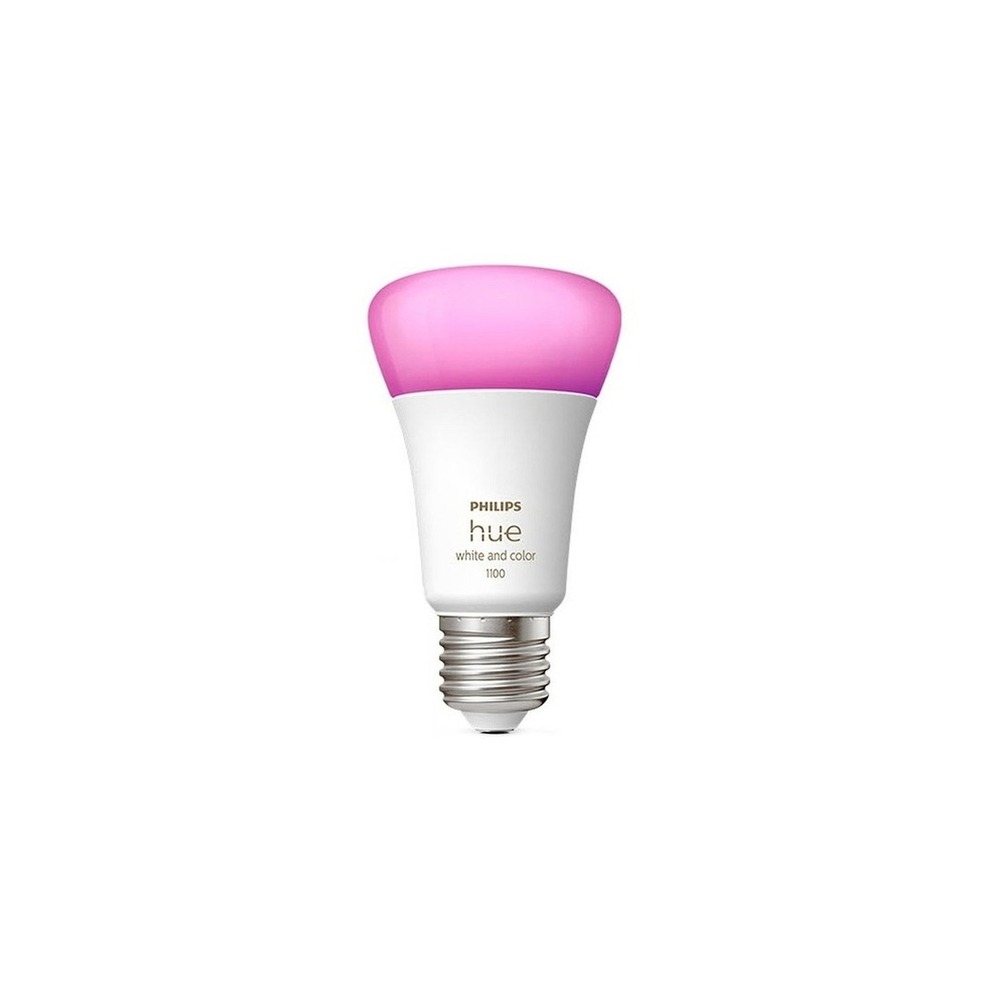
Philips Hue 4.0 White and Color Smart Bulb
Philips Hue White and Color Ambiance Bulb 1100 9W 9290035384
The reason for including the Philips Hue 4.0 White and Color Smart Bulb in ‘Choosing Devices When Starting Matter·Thread Smart Home’ is that it exposes existing Hue lights to the Matter platform through the Hue Bridge, which directly relates to the purpose of the list. Especially from the perspective of ‘Choosing Devices When Starting Matter·Thread Smart Home’, it's easy to appreciate the advantages of the Philips Hue 4.0 White and Color Smart Bulb for homes that already have Hue lighting and want platform integration. However, the Philips Hue 4.0 White and Color Smart Bulb is not just a product that can be connected without additional steps. The compatibility conditions for the Philips Hue 4.0 White and Color Smart Bulb confirmed in ‘Choosing Devices When Starting Matter·Thread Smart Home’ include ‘checking for Bluetooth or Hue Bridge configuration and voice platform support’, while power conditions are guided as ‘constant power via E26 socket’, so it should be matched with the actual home environment.
The installation conditions for the Philips Hue 4.0 White and Color Smart Bulb to consider as per ‘Choosing Devices When Starting Matter·Thread Smart Home’ are ‘replacing with existing socket and keeping the wall switch on’. Based on these conditions, determine the initial position and movement path. When evaluating the costs of the ‘Choosing Devices When Starting Matter·Thread Smart Home’ setup, confirm that ‘basic app is used without subscription and verify specific service policies’, and manage the Philips Hue 4.0 White and Color Smart Bulb’s account and records with the principle of ‘managing account remote access and automations sharing members’. After installing the Philips Hue 4.0 White and Color Smart Bulb, refer to ‘Choosing Devices When Starting Matter·Thread Smart Home’ for a few days to test both the automation results and manual operations. Just before purchase, it’s safer to recheck the model name, components, ratings, and sales status of the Philips Hue 4.0 White and Color Smart Bulb connected to the original source document.
The installation conditions for the Philips Hue 4.0 White and Color Smart Bulb to consider as per ‘Choosing Devices When Starting Matter·Thread Smart Home’ are ‘replacing with existing socket and keeping the wall switch on’. Based on these conditions, determine the initial position and movement path. When evaluating the costs of the ‘Choosing Devices When Starting Matter·Thread Smart Home’ setup, confirm that ‘basic app is used without subscription and verify specific service policies’, and manage the Philips Hue 4.0 White and Color Smart Bulb’s account and records with the principle of ‘managing account remote access and automations sharing members’. After installing the Philips Hue 4.0 White and Color Smart Bulb, refer to ‘Choosing Devices When Starting Matter·Thread Smart Home’ for a few days to test both the automation results and manual operations. Just before purchase, it’s safer to recheck the model name, components, ratings, and sales status of the Philips Hue 4.0 White and Color Smart Bulb connected to the original source document.
브랜드 필립스 Hue
주요 용도 Hue Bridge를 통해 기존 Hue 조명을 Matter 플랫폼에 노출
알맞은 상황 이미 Hue 조명이 있고 플랫폼 통합을 원하는 집
호환 조건 Bluetooth 또는 Hue Bridge 구성과 음성 플랫폼 지원 확인
전원 E26 소켓 상시 전원
설치 확인 기존 소켓에 교체하고 벽 스위치는 켜 둠
구독 기본 앱은 구독 없이 사용하며 일부 서비스 정책 확인
개인정보·보안 계정 원격접속과 자동화 공유 구성원 관리
이미지 출처 기존 검증 쿠팡 상품 이미지
Once you have shortlisted candidates, instead of installing all devices at once, let's trial one frequently used function for about a week as per ‘Choosing Devices When Starting Matter·Thread Smart Home’. After setting a platform like Apple Home, Google Home, or SmartThings, and verifying the presence of controllers and Thread Border Routers, repeat the registration of one device during actual living hours to quickly identify unnecessary notifications, connectivity blackouts, and inconveniences for the family. At this stage, it's also good to check if you can manually use the basic functions.
Before final purchase, keep a checklist of the following: Matter support version, necessity of a Thread Border Router, differences in exposure through bridges and device certification, and features related to region and firmware. Checking battery and consumable replacement cycles, account sharing scope, and necessary reset procedures before reselling or moving can make it easier to estimate management costs. For installations related to electricity, water, and security access, don't rely solely on the wording on the sales page; it's essential to prioritize the manufacturer's guidance and regulations from the management entity.
Before final purchase, keep a checklist of the following: Matter support version, necessity of a Thread Border Router, differences in exposure through bridges and device certification, and features related to region and firmware. Checking battery and consumable replacement cycles, account sharing scope, and necessary reset procedures before reselling or moving can make it easier to estimate management costs. For installations related to electricity, water, and security access, don't rely solely on the wording on the sales page; it's essential to prioritize the manufacturer's guidance and regulations from the management entity.
한눈에 보기
7개
Aqara Door Window Sensor P2
Aqara · Matter over Thread로 문·창문 열림 상태를 공유 · Thread Border Router가 준비된 멀티플랫폼 집 · Matter over Thread 지원과 Thread Border Router 필요 여부 확인 · 교체형 배터리 · 센서와 자석 간격·부착면·문 움직임 확인 · 기본 센서 사용은 구독 없음 · 열림 기록과 외부 알림을 공유할 구성원 제한 · 기존 검증 쿠팡 상품 이미지
TP-Link Tapo P100 Smart Plug
TP-Link Tapo · Matter 인증 플러그로 여러 지원 플랫폼에서 전원을 제어 · 스마트 플러그 한 개로 Matter 등록을 연습할 때 · Tapo 앱·2.4GHz Wi-Fi·지원 음성비서 확인 · 가정용 콘센트, 제품 정격 내 부하 · 벽 콘센트에 꽂고 주변 콘센트 간섭 확인 · 기본 제어는 구독 없음 · 공유 계정과 외부 원격접속 권한 관리 · 기존 검증 쿠팡 상품 이미지
HeyHome Smart Plug
Hejhome · 국내 플러그 규격의 Matter 제품으로 원격·예약 제어 · Hejhome과 타 플랫폼을 함께 시험할 때 · Hejhome 앱·2.4GHz Wi-Fi와 음성 플랫폼 지원 확인 · 가정용 콘센트와 제품 정격 · 벽면 콘센트와 멀티탭 간격 확인 · 기본 제어는 구독 없음 · 가족 초대 계정과 원격제어 권한 확인 · 기존 검증 쿠팡 상품 이미지
SwitchBot Hub 2 Matter Support
SwitchBot · SwitchBot Bluetooth 기기를 Matter 생태계에 연결하는 브리지 역할 · Curtain·Bot을 다른 플랫폼에 노출하고 싶은 집 · Wi-Fi·Bluetooth·Matter 지원 기기 목록 확인 · USB 상시 전원 · 집 중앙의 Wi-Fi와 각 기기 통신이 닿는 위치에 배치 · 기본 허브 기능은 구독 없음 · 원격제어 계정·적외선 리모컨 데이터와 가족 권한 관리 · 기존 검증 쿠팡 상품 이미지
SwitchBot Curtain 3
SwitchBot · Hub 2를 통해 전동 커튼을 Matter 장면에 포함 · 기상·일몰 자동화를 멀티플랫폼에서 쓸 때 · 레일 유형별 모델과 Hub·Matter 연동 조건 확인 · 충전식 배터리 · 커튼 무게·레일 형상·주행 간섭과 낙하 위험 확인 · 기본 앱 제어는 구독 없음 · 위치·일출 자동화 권한과 가족 계정 공유 확인 · 기존 검증 쿠팡 상품 이미지
Nanoleaf Shape Hexagon Starter Kit
Nanoleaf · 조명 패널과 일부 Thread 생태계 기능을 함께 구성 · Nanoleaf 조명과 다른 Matter 기기를 확장할 때 · Nanoleaf 앱·Wi-Fi·Matter/Thread 지원은 세대별 확인 · 전용 어댑터 · 벽면 부착력과 패널 수별 전원 용량 확인 · 기본 장면 제어는 구독 없음 · 마이크 권한과 계정·기기 공유 설정 확인 · 기존 검증 쿠팡 상품 이미지
Philips Hue 4.0 White and Color Smart Bulb
필립스 Hue · Hue Bridge를 통해 기존 Hue 조명을 Matter 플랫폼에 노출 · 이미 Hue 조명이 있고 플랫폼 통합을 원하는 집 · Bluetooth 또는 Hue Bridge 구성과 음성 플랫폼 지원 확인 · E26 소켓 상시 전원 · 기존 소켓에 교체하고 벽 스위치는 켜 둠 · 기본 앱은 구독 없이 사용하며 일부 서비스 정책 확인 · 계정 원격접속과 자동화 공유 구성원 관리 · 기존 검증 쿠팡 상품 이미지
이 포스팅은 쿠팡 파트너스 활동의 일환으로, 이에 따른 일정액의 수수료를 제공받습니다.
댓글 0
로그인 후 댓글을 작성할 수 있습니다.
첫 댓글을 남겨보세요.
이런 리스트는 어때요?


이런 리스트도 추천해요


🎲
여기서 멈추기엔 아쉽잖아?
다음에 뭘 볼지 고민하는 시간이 제일 아까워.
주사위가 대신 골라줄게 — 무슨 리스트가 튀어나올지는 굴려봐야 알지.
안 누르면… 평생 궁금하지 않겠어? 👀