Collection
Cloud
2026.10.04
Cloud Vaults to Consider Before Writing Your Passwords in Notepad
How the password management services differ in passkeys and recovery methods, as well as family and team sharing
The list of ‘Cloud Vaults to Consider Before Writing Your Passwords in Notepad’ doesn’t just lay out services by name. To securely use login information and passkeys across devices, you should first look at differences in account types, service offerings, and supported devices, even among services like 1Password and Bitwarden that serve similar purposes. The ‘Cloud Vaults to Consider Before Writing Your Passwords in Notepad’ list has organized candidates focusing on the differences that influence your decision.
When choosing from the ‘Cloud Vaults to Consider Before Writing Your Passwords in Notepad,’ you should check criteria such as master password, account recovery, two-factor authentication, and shared vault ownership verification. The necessary prices, free tiers, and supported regions for each ‘Cloud Vault’ can vary, so be sure to check official pages before signing up. Rather than moving important accounts or entire projects from the start, test login, execution, sharing, and exporting with sample data for the ‘Cloud Vaults to Consider.’ Knowing how to recover your data when you end your subscription will help reduce inconveniences after making your selection.
When choosing from the ‘Cloud Vaults to Consider Before Writing Your Passwords in Notepad,’ you should check criteria such as master password, account recovery, two-factor authentication, and shared vault ownership verification. The necessary prices, free tiers, and supported regions for each ‘Cloud Vault’ can vary, so be sure to check official pages before signing up. Rather than moving important accounts or entire projects from the start, test login, execution, sharing, and exporting with sample data for the ‘Cloud Vaults to Consider.’ Knowing how to recover your data when you end your subscription will help reduce inconveniences after making your selection.
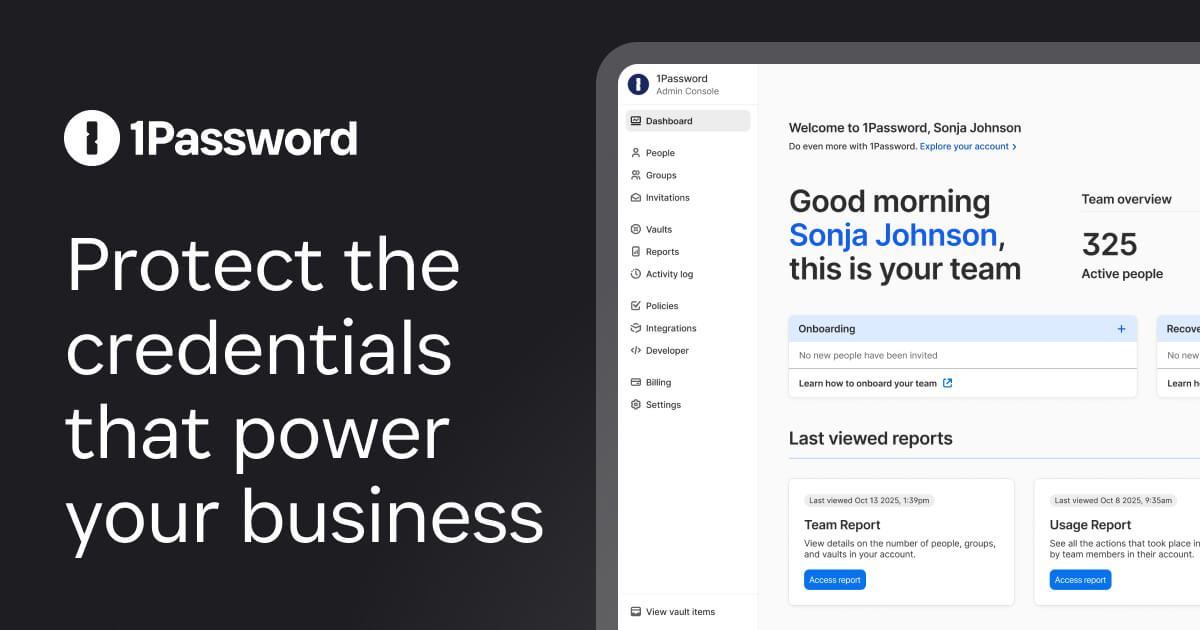
1Password
1Password is included in the ‘Cloud Vaults to Consider Before Writing Your Passwords in Notepad’ because it encrypts login information and passkeys for secure use across multiple devices while synchronizing passwords, passkeys, and secure notes. Key features of 1Password include personal, family, and team vaults, along with automatic filling across devices, supporting environments such as Windows, macOS, Linux, Android, iOS, and browsers. Each feature and region offered by 1Password may vary based on account type and usage plan, so be sure to check the latest conditions on the official 1Password page.
When trying out 1Password, the first option on the list, use the free trial or a small set of test data to complete the core flow. Specifically, ensure you check the section for ‘keeping emergency kits and account recovery procedures offline,’ as failing to do so could lead you to miss desired features or incur unexpected billing or recovery issues. After the trial, organize shared links and login devices for 1Password and check if data exports are possible. This way, you can assess the master password, account recovery, two-factor authentication, and shared vault ownership verification based on your real usage experience.
When trying out 1Password, the first option on the list, use the free trial or a small set of test data to complete the core flow. Specifically, ensure you check the section for ‘keeping emergency kits and account recovery procedures offline,’ as failing to do so could lead you to miss desired features or incur unexpected billing or recovery issues. After the trial, organize shared links and login devices for 1Password and check if data exports are possible. This way, you can assess the master password, account recovery, two-factor authentication, and shared vault ownership verification based on your real usage experience.
제공사 1Password
주요 용도 비밀번호·패스키·보안 메모 동기화
지원 환경 Windows·macOS·Linux·Android·iOS·브라우저
살펴볼 특징 개인·가족·팀 금고와 기기 간 자동 입력을 제공
확인할 점 비상 키트와 계정 복구 절차를 오프라인에도 보관
이미지 출처 공식 서비스 페이지 이미지: https://images.ctfassets.net/2h488pz7kgfv/4JAm44Htcrinu0sTomaEGi/1f7be85af3138e1d38bb31fe5ad6425b/open-graph-1password-business.jpg (페이지: https://1password.com/)
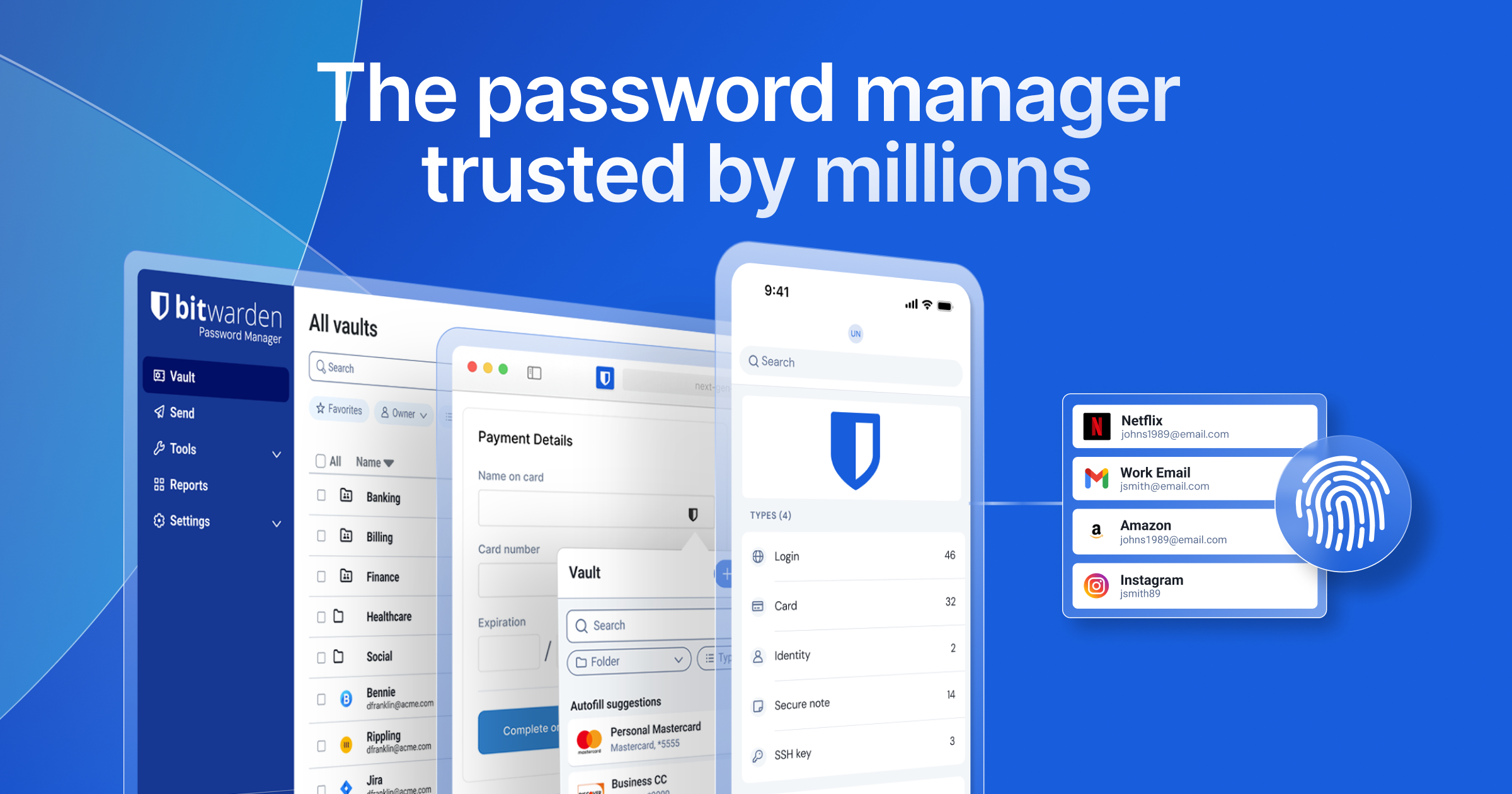
Bitwarden
Bitwarden is included in the ‘Cloud Vaults to Consider Before Writing Your Passwords in Notepad’ due to its role as an open-source password vault that encrypts login information and passkeys for secure use across multiple devices. Important features of Bitwarden include synchronization of login, passkey, and secure information across devices, and it supports web, desktop, mobile, and browser environments. The functionality and features of Bitwarden may differ based on account types and usage plans, so checking the official Bitwarden page for current conditions is essential.
As the second option on the ‘Cloud Vaults to Consider Before Writing Your Passwords in Notepad’ list, when testing Bitwarden, utilize the free trial or a small set of test data to execute the core flow fully. Be sure to check the section for ‘separating the master password, recovery code, and organizational vault permissions,’ as neglecting this may restrict access to desired features or cause unexpected billing or recovery issues. After the test, organize shared links and login devices for Bitwarden to see if data exports are possible. This will allow you to assess master password, account recovery, two-factor authentication, and shared vault ownership verification based on your actual experience.
As the second option on the ‘Cloud Vaults to Consider Before Writing Your Passwords in Notepad’ list, when testing Bitwarden, utilize the free trial or a small set of test data to execute the core flow fully. Be sure to check the section for ‘separating the master password, recovery code, and organizational vault permissions,’ as neglecting this may restrict access to desired features or cause unexpected billing or recovery issues. After the test, organize shared links and login devices for Bitwarden to see if data exports are possible. This will allow you to assess master password, account recovery, two-factor authentication, and shared vault ownership verification based on your actual experience.
제공사 Bitwarden
주요 용도 오픈소스 기반 비밀번호 금고
지원 환경 웹·데스크톱·모바일·브라우저
살펴볼 특징 여러 기기의 로그인·패스키·보안 정보를 동기화
확인할 점 마스터 비밀번호와 복구 코드, 조직 금고 권한을 분리
이미지 출처 공식 서비스 페이지 이미지: https://bitwarden.com/assets/7fzQJmr0qt5ggGZp3t66Y/7bf59a6a2379d49fc580ff49e8510efb/bitwarden.com_og_image.png (페이지: https://bitwarden.com/)
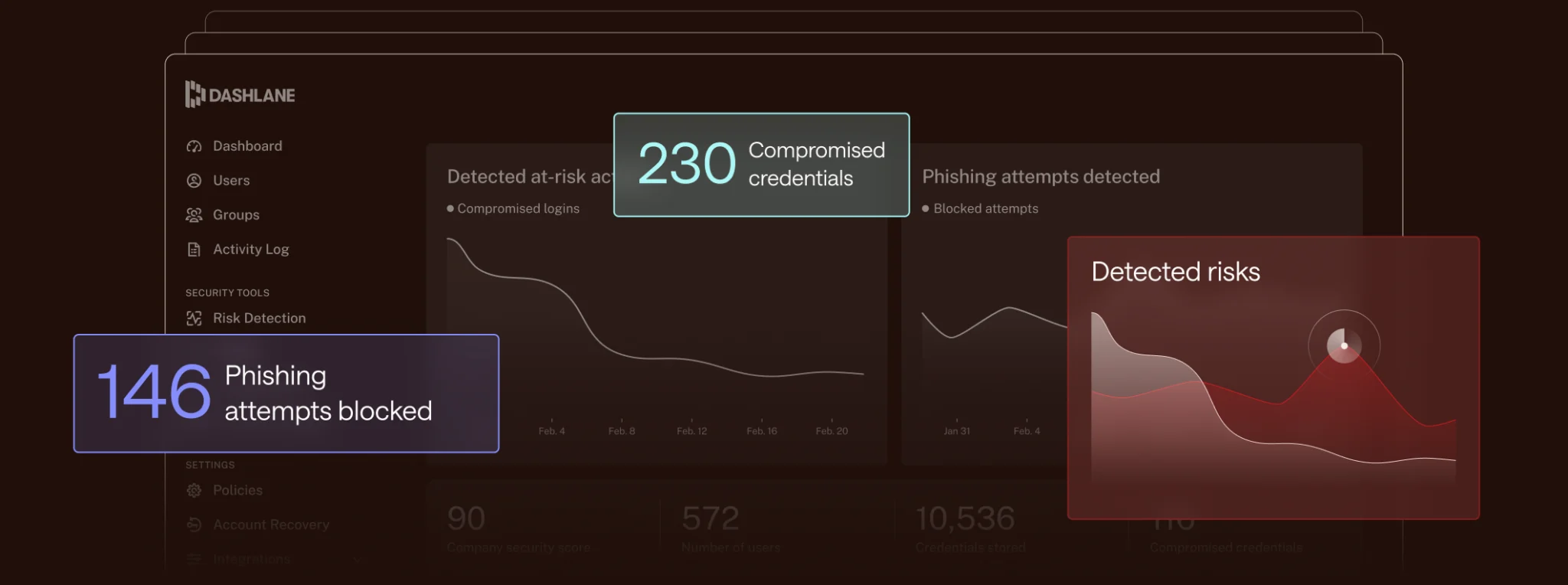
Dashlane
Dashlane is included in the ‘Cloud Vaults to Consider Before Writing Your Passwords in Notepad’ because it manages password storage and security status while encrypting login information and passkeys for secure use across multiple devices. Key features of Dashlane include browser-centered automatic filling and providing password health checks, with support for web app, Android, iOS, and browser environments. The functions and regions provided by Dashlane may vary according to account types and usage plans, so it's important to verify the latest conditions on the official Dashlane page.
As the third choice in the ‘Cloud Vaults to Consider Before Writing Your Passwords in Notepad’ list, when testing Dashlane, utilize the free trial or a small set of test data to complete the core flow. It’s especially important to check the section for ‘supported browsers, free vs. paid device scope, and recovery options,’ as failing to do so could lead to unforeseen billing or recovery issues. After finishing the trial, make sure to tidy up Dashlane's shared links and login devices, and check if data export is possible. This will help assess master password, account recovery, two-factor authentication, and shared vault ownership verification based on real usage experience.
As the third choice in the ‘Cloud Vaults to Consider Before Writing Your Passwords in Notepad’ list, when testing Dashlane, utilize the free trial or a small set of test data to complete the core flow. It’s especially important to check the section for ‘supported browsers, free vs. paid device scope, and recovery options,’ as failing to do so could lead to unforeseen billing or recovery issues. After finishing the trial, make sure to tidy up Dashlane's shared links and login devices, and check if data export is possible. This will help assess master password, account recovery, two-factor authentication, and shared vault ownership verification based on real usage experience.
제공사 Dashlane
주요 용도 비밀번호 저장과 보안 상태 관리
지원 환경 웹 앱·Android·iOS·브라우저
살펴볼 특징 브라우저 중심 자동 입력과 비밀번호 건강 상태를 제공
확인할 점 지원 브라우저와 무료·유료 기기 범위, 복구 옵션을 확인
이미지 출처 공식 서비스 페이지 이미지: https://www.dashlane.com/uploads/2025/07/dashlane_omnix_hero-1-scaled.webp (페이지: https://www.dashlane.com/)
Proton Pass
Proton Pass is included in the ‘Cloud Vaults to Consider Before Writing Your Passwords in Notepad’ because it manages encrypted passwords, passkeys, and alias information securely across multiple devices. The standout feature of Proton Pass is end-to-end encryption for login information and email aliases, synchronizing across environments like web, Windows, macOS, Linux, Android, iOS, and browsers. Functionality and availability may differ according to account types and usage plans, so checking the official Proton page for current conditions is advisable.
As the fourth choice in the ‘Cloud Vaults to Consider Before Writing Your Passwords in Notepad’ list, when testing Proton Pass, utilize the free trial or a small set of sample data to execute the main workflow. Be among those checking the ‘not storing recovery phrases and two-factor authentication methods in the same vault’ section carefully; overlooking this could affect your ability to access certain features or lead to unexpected billing or recovery issues. Once finished, review Proton Pass's shared links and login devices and check if data export is possible. This will aid in assessing master password, account recovery, two-factor authentication, and shared vault ownership verification based on your actual experience.
As the fourth choice in the ‘Cloud Vaults to Consider Before Writing Your Passwords in Notepad’ list, when testing Proton Pass, utilize the free trial or a small set of sample data to execute the main workflow. Be among those checking the ‘not storing recovery phrases and two-factor authentication methods in the same vault’ section carefully; overlooking this could affect your ability to access certain features or lead to unexpected billing or recovery issues. Once finished, review Proton Pass's shared links and login devices and check if data export is possible. This will aid in assessing master password, account recovery, two-factor authentication, and shared vault ownership verification based on your actual experience.
제공사 Proton
주요 용도 암호화 비밀번호·패스키·별칭 관리
지원 환경 웹·Windows·macOS·Linux·Android·iOS·브라우저
살펴볼 특징 로그인 정보와 이메일 별칭을 종단간 암호화해 동기화
확인할 점 복구 문구와 2단계 인증 수단을 같은 금고에만 두지 않기
이미지 출처 공식 서비스 페이지 이미지: https://pmecdn.protonweb.com/image-transformation/?s=a&image=Zx_Ij_I4_F3_Nbk_B_Xt_CR_Proton_Pass_0b5caf9c97.png (페이지: https://proton.me/pass)
Keeper
Keeper is included in the ‘Cloud Vaults to Consider Before Writing Your Passwords in Notepad’ because it takes on the role of managing personal and organizational credentials securely across multiple devices while encrypting login information and passkeys. Important features to note with Keeper include providing encryption vaults, sharing options, and administration policies, with support for web, desktop, mobile, and browser environments. The features and availability of Keeper can vary based on account types and usage plans, so direct verification of current conditions on the Keeper Security official page is essential.
As the fifth option in the ‘Cloud Vaults to Consider Before Writing Your Passwords in Notepad’ list, when testing Keeper, utilize the free trial or a small set of test data to walk through the core flow. Particularly check the section about ownership between personal and company vaults, and verify the emergency access settings; ignoring these may restrict your ability to use certain features or lead to unexpected billing or recovery issues. Once your testing is complete, organize Keeper’s shared links and login devices, and confirm if exporting data is feasible. This way, you’ll be able to evaluate master password, account recovery, two-factor authentication, and shared vault ownership verification through actual usage experience.
As the fifth option in the ‘Cloud Vaults to Consider Before Writing Your Passwords in Notepad’ list, when testing Keeper, utilize the free trial or a small set of test data to walk through the core flow. Particularly check the section about ownership between personal and company vaults, and verify the emergency access settings; ignoring these may restrict your ability to use certain features or lead to unexpected billing or recovery issues. Once your testing is complete, organize Keeper’s shared links and login devices, and confirm if exporting data is feasible. This way, you’ll be able to evaluate master password, account recovery, two-factor authentication, and shared vault ownership verification through actual usage experience.
제공사 Keeper Security
주요 용도 개인과 조직의 자격 증명 관리
지원 환경 웹·데스크톱·모바일·브라우저
살펴볼 특징 암호화 금고와 공유, 관리자 정책을 제공
확인할 점 개인 금고와 회사 금고의 소유권, 긴급 접근 설정을 확인
이미지 출처 공식 서비스 페이지 이미지: https://www.keepersecurity.com/assets/images/opengraph/logo-with-tagline.webp (페이지: https://www.keepersecurity.com/)
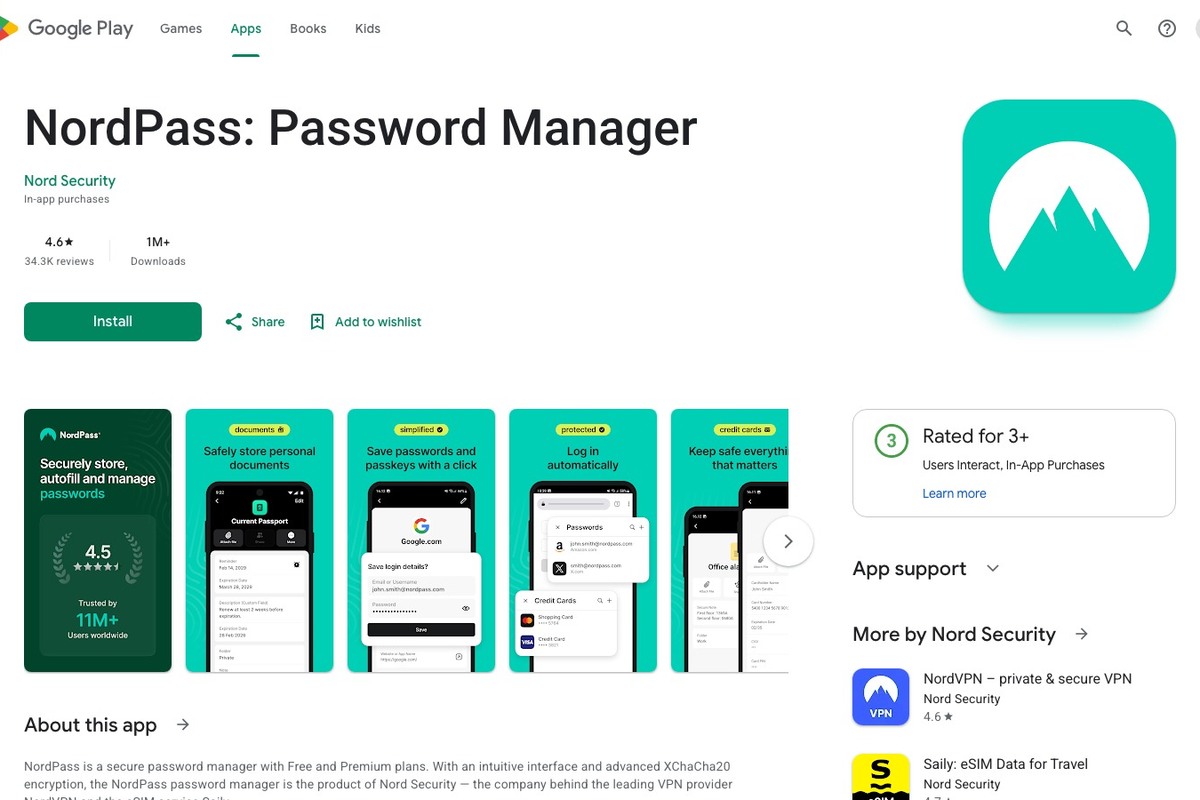
NordPass
NordPass is included in the ‘Cloud Vaults to Consider Before Writing Your Passwords in Notepad’ because it synchronizes passwords and passkeys securely across devices while encrypting login information and passkeys. Notable features of NordPass include automatic saving and filling, along with data breach checking, and it provides support for web, desktop, mobile, and browser environments. The functionality and region availability for NordPass may vary based on account types and usage plans, so checking the Nord Security official page for current conditions is recommended.
As the sixth option in the ‘Cloud Vaults to Consider Before Writing Your Passwords in Notepad’ list, test NordPass using a free trial or a small sample dataset to go through the core flow. It’s especially important to check the section for ‘account recovery codes and sharing/emergency access features by plan,’ as overlooking may lead to restricted access to desired features or even unexpected billing/recovery issues. After your trial, sort out NordPass’s shared links and login devices and ensure you check if data export capabilities are available. This will allow you to assess master password, account recovery, two-factor authentication, and shared vault ownership verification through your real usage experience.
As the sixth option in the ‘Cloud Vaults to Consider Before Writing Your Passwords in Notepad’ list, test NordPass using a free trial or a small sample dataset to go through the core flow. It’s especially important to check the section for ‘account recovery codes and sharing/emergency access features by plan,’ as overlooking may lead to restricted access to desired features or even unexpected billing/recovery issues. After your trial, sort out NordPass’s shared links and login devices and ensure you check if data export capabilities are available. This will allow you to assess master password, account recovery, two-factor authentication, and shared vault ownership verification through your real usage experience.
제공사 Nord Security
주요 용도 비밀번호와 패스키의 기기 간 동기화
지원 환경 웹·데스크톱·모바일·브라우저
살펴볼 특징 자동 저장·입력과 데이터 유출 확인 기능을 제공
확인할 점 계정 복구 코드와 요금제별 공유·긴급 접근 기능을 확인
이미지 출처 공식 페이지 화면: https://play.google.com/store/apps/details?id=com.nordpass.android.app.password.manager
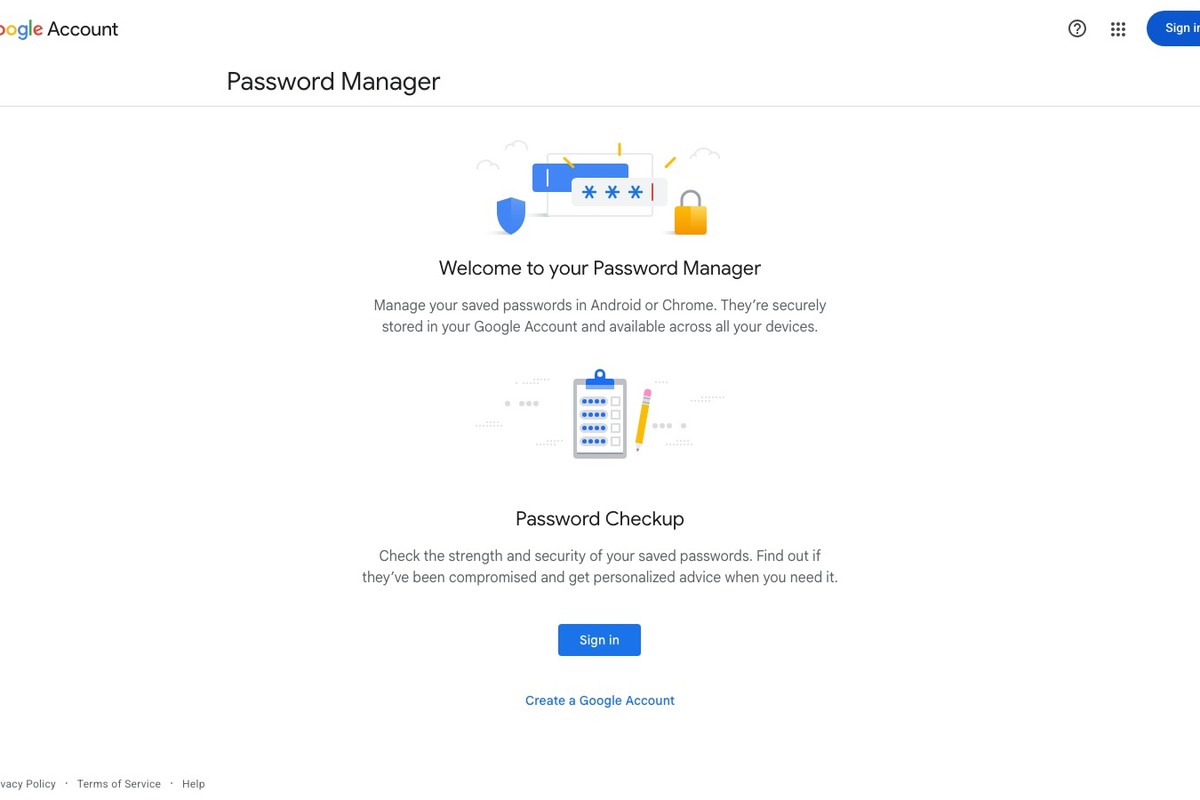
Google Password Manager
Google Password Manager is included in the ‘Cloud Vaults to Consider Before Writing Your Passwords in Notepad’ because it manages passwords and passkeys based on your Google account, encrypting login information securely across multiple devices. Key features of Google Password Manager include storing and checking login information on Chrome and Android, with support for Chrome, Android, web, and limited iOS integration. Functionality and region availability for Google Password Manager may differ by account type and usage plan, so be sure to validate the current conditions on the Google official page.
As the seventh option in the ‘Cloud Vaults to Consider Before Writing Your Passwords in Notepad’ list, when testing Google Password Manager, use a free trial or a small sample dataset to complete the core workflow thoroughly. Pay special attention to the section about ‘checking Google login status and synchronization settings on shared devices,’ as neglecting this may lead to restrictions on desired features or unexpected billing and recovery concerns. Upon completion of your trial, organize Google Password Manager’s shared links and login devices, checking if data export is feasible. This will help you assess master password, account recovery, two-factor authentication, and shared vault ownership verification based on your actual user experience.
As the seventh option in the ‘Cloud Vaults to Consider Before Writing Your Passwords in Notepad’ list, when testing Google Password Manager, use a free trial or a small sample dataset to complete the core workflow thoroughly. Pay special attention to the section about ‘checking Google login status and synchronization settings on shared devices,’ as neglecting this may lead to restrictions on desired features or unexpected billing and recovery concerns. Upon completion of your trial, organize Google Password Manager’s shared links and login devices, checking if data export is feasible. This will help you assess master password, account recovery, two-factor authentication, and shared vault ownership verification based on your actual user experience.
제공사 Google
주요 용도 Google 계정 기반 비밀번호·패스키 관리
지원 환경 Chrome·Android·웹·iOS 일부 연동
살펴볼 특징 Chrome과 Android에서 로그인 정보를 저장하고 점검
확인할 점 공용 기기의 Google 로그인 상태와 동기화 설정을 확인
이미지 출처 공식 페이지 화면: https://passwords.google.com/
The right choice from the ‘Cloud Vaults to Consider Before Writing Your Passwords in Notepad’ is not simply the service with the most features, but rather one that fits seamlessly into your routine. After recording your usage of login information and passkeys securely across devices over a week, separating essential from optional features will quickly narrow down your candidates. Options like Google Password Manager, while clearly defined, could lead to increased management tasks if they don't fit your device and account setup.
If you’ve chosen one from the ‘Cloud Vaults to Consider Before Writing Your Passwords in Notepad,’ let’s check the settings for master password, account recovery, two-factor authentication, and shared vault ownership verification. Make sure to enable multi-factor authentication and recovery options for the accounts used within the ‘Cloud Vault.’ Keep track of your billing dates and export locations. After using your chosen vault for a month, compare speed, errors, and anticipated costs; if it doesn’t match your needs, recover your data and switch to another option. This process will help ensure convenience while minimizing the risks of getting locked into a particular service.
If you’ve chosen one from the ‘Cloud Vaults to Consider Before Writing Your Passwords in Notepad,’ let’s check the settings for master password, account recovery, two-factor authentication, and shared vault ownership verification. Make sure to enable multi-factor authentication and recovery options for the accounts used within the ‘Cloud Vault.’ Keep track of your billing dates and export locations. After using your chosen vault for a month, compare speed, errors, and anticipated costs; if it doesn’t match your needs, recover your data and switch to another option. This process will help ensure convenience while minimizing the risks of getting locked into a particular service.
한눈에 보기
7개
1Password
1Password · 비밀번호·패스키·보안 메모 동기화 · Windows·macOS·Linux·Android·iOS·브라우저 · 개인·가족·팀 금고와 기기 간 자동 입력을 제공 · 비상 키트와 계정 복구 절차를 오프라인에도 보관 · 공식 서비스 페이지 이미지: https://images.ctfassets.net/2h488pz7kgfv/4JAm44Htcrinu0sTomaEGi/1f7be85af3138e1d38bb31fe5ad6425b/open-graph-1password-business.jpg (페이지: https://1password.com/)
Bitwarden
Bitwarden · 오픈소스 기반 비밀번호 금고 · 웹·데스크톱·모바일·브라우저 · 여러 기기의 로그인·패스키·보안 정보를 동기화 · 마스터 비밀번호와 복구 코드, 조직 금고 권한을 분리 · 공식 서비스 페이지 이미지: https://bitwarden.com/assets/7fzQJmr0qt5ggGZp3t66Y/7bf59a6a2379d49fc580ff49e8510efb/bitwarden.com_og_image.png (페이지: https://bitwarden.com/)
Dashlane
Dashlane · 비밀번호 저장과 보안 상태 관리 · 웹 앱·Android·iOS·브라우저 · 브라우저 중심 자동 입력과 비밀번호 건강 상태를 제공 · 지원 브라우저와 무료·유료 기기 범위, 복구 옵션을 확인 · 공식 서비스 페이지 이미지: https://www.dashlane.com/uploads/2025/07/dashlane_omnix_hero-1-scaled.webp (페이지: https://www.dashlane.com/)
Proton Pass
Proton · 암호화 비밀번호·패스키·별칭 관리 · 웹·Windows·macOS·Linux·Android·iOS·브라우저 · 로그인 정보와 이메일 별칭을 종단간 암호화해 동기화 · 복구 문구와 2단계 인증 수단을 같은 금고에만 두지 않기 · 공식 서비스 페이지 이미지: https://pmecdn.protonweb.com/image-transformation/?s=a&image=Zx_Ij_I4_F3_Nbk_B_Xt_CR_Proton_Pass_0b5caf9c97.png (페이지: https://proton.me/pass)
Keeper
Keeper Security · 개인과 조직의 자격 증명 관리 · 웹·데스크톱·모바일·브라우저 · 암호화 금고와 공유, 관리자 정책을 제공 · 개인 금고와 회사 금고의 소유권, 긴급 접근 설정을 확인 · 공식 서비스 페이지 이미지: https://www.keepersecurity.com/assets/images/opengraph/logo-with-tagline.webp (페이지: https://www.keepersecurity.com/)
NordPass
Nord Security · 비밀번호와 패스키의 기기 간 동기화 · 웹·데스크톱·모바일·브라우저 · 자동 저장·입력과 데이터 유출 확인 기능을 제공 · 계정 복구 코드와 요금제별 공유·긴급 접근 기능을 확인 · 공식 페이지 화면: https://play.google.com/store/apps/details?id=com.nordpass.android.app.password.manager
Google Password Manager
Google · Google 계정 기반 비밀번호·패스키 관리 · Chrome·Android·웹·iOS 일부 연동 · Chrome과 Android에서 로그인 정보를 저장하고 점검 · 공용 기기의 Google 로그인 상태와 동기화 설정을 확인 · 공식 페이지 화면: https://passwords.google.com/
이 포스팅은 쿠팡 파트너스 활동의 일환으로, 이에 따른 일정액의 수수료를 제공받습니다.
댓글 0
로그인 후 댓글을 작성할 수 있습니다.
첫 댓글을 남겨보세요.
이런 리스트는 어때요?


이런 리스트도 추천해요


🎲
여기서 멈추기엔 아쉽잖아?
다음에 뭘 볼지 고민하는 시간이 제일 아까워.
주사위가 대신 골라줄게 — 무슨 리스트가 튀어나올지는 굴려봐야 알지.
안 누르면… 평생 궁금하지 않겠어? 👀